

Airtable API Credentials
Airtable API credentials allow your SubverseAI agents to interact with Airtable bases for database operations and data management.Overview
Airtable credentials provide access to:- Database operations (CRUD)
- Table and record management
- Data synchronization
- Spreadsheet-like database operations
- Collaborative data workflows
Dashboard Screenshot
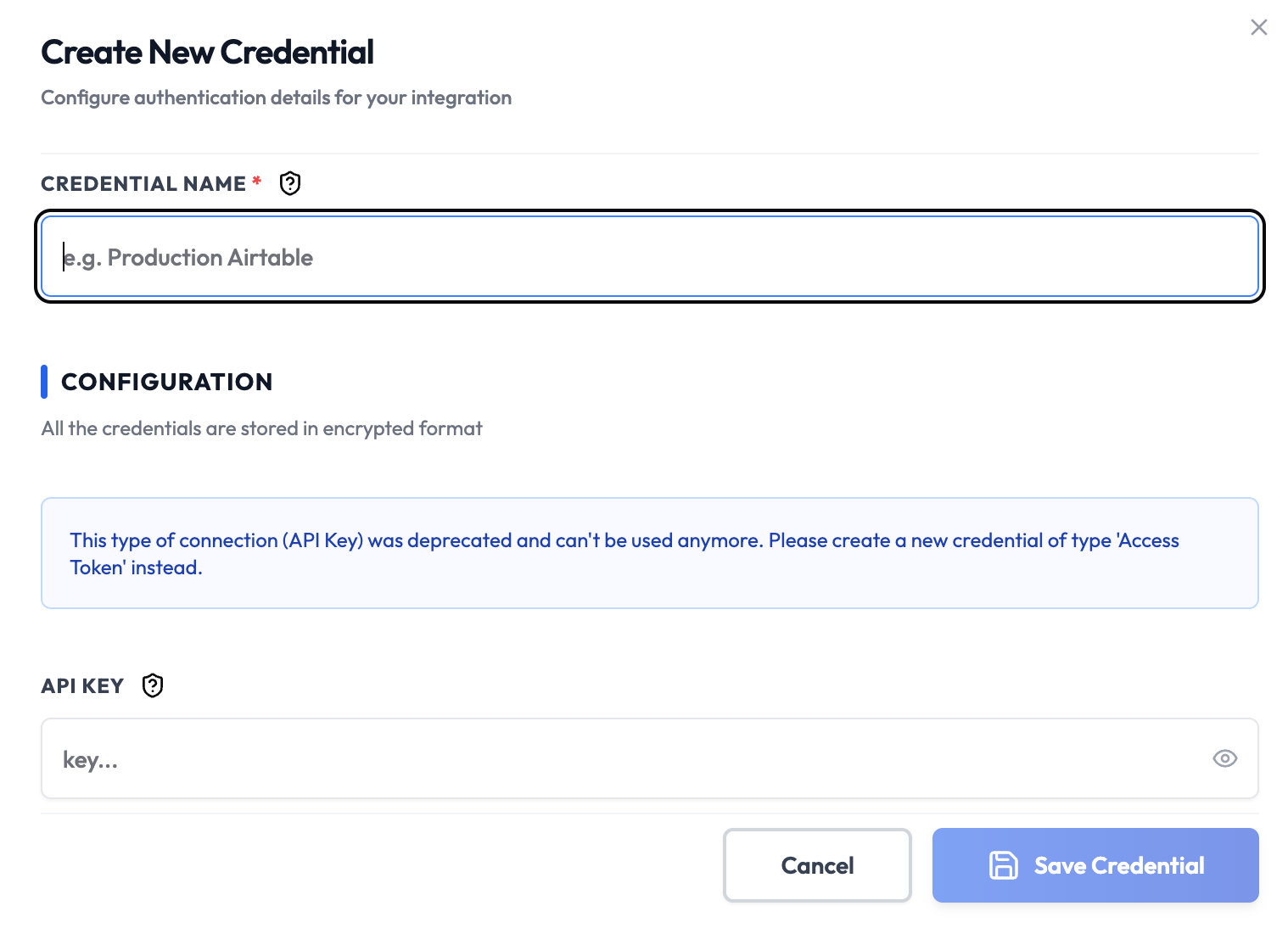
Steps to Create Airtable API Credentials
1. Create Airtable Account
- Visit Airtable
- Sign up or sign in to your account
- Create or select a workspace
2. Generate Personal Access Token
- Navigate to the Developer Hub
- Click Create new token
- Enter a token name (e.g., “SubverseAI Integration”)
- Set permissions:
- Select the workspaces to access
- Choose scopes (read, create, update, delete)
- Click Create token
- Copy the token immediately - it won’t be shown again
3. Get Base and Table IDs
- Open your Airtable base
- From the URL, copy the Base ID (the part after
https://airtable.com/) - Go to Help > API documentation
- Select your base to see table IDs
- Note the Table IDs for tables you want to access
4. Add to SubverseAI
- Go to Credentials in your SubverseAI dashboard
- Click Create New Credential
- Select Airtable API from the credential types
- Enter a name for your credential
- Fill in the required fields:
- Personal Access Token: Your Airtable API token
- Base ID (optional): Default base ID for operations
- Click Save Credential
Required Fields
- Name: A descriptive name for your credential
- Personal Access Token: Your Airtable personal access token
- Base ID (optional): Default base ID for operations
Usage Tips
- Use specific scopes to limit token permissions
- Create separate tokens for different environments
- Regularly rotate your access tokens
- Use base and table IDs rather than names for reliability
Troubleshooting
Invalid Token: Ensure you copied the complete token including thepat prefix
Permission Denied: Check that your token has the required scopes and workspace access
Base Not Found: Verify the Base ID is correct and you have access to that base
Rate Limit Exceeded: Airtable has API rate limits - implement retry logic
Next Steps
After creating your Airtable credentials:- Set up data synchronization workflows
- Create database automation workflows
- Build data import/export processes
- Configure real-time data updates
- Integrate with other data sources