

Google AI API Credentials
Google AI API credentials allow your SubverseAI agents to access Google’s Gemini models and other AI services.Overview
Google AI credentials provide access to:- Gemini Pro and Gemini Pro Vision models
- Text generation and multimodal capabilities
- Embedding models for vector search
- Google’s latest AI models and capabilities
Dashboard Screenshot
Steps to Create Google AI API Credentials
1. Create Google Account
- Visit Google AI Studio
- Sign in with your Google account
- Accept the terms of service
2. Generate API Key
- Navigate to the API Keys section
- Click Create API Key
- Give your API key a descriptive name
- Copy the generated API key
3. Add to SubverseAI
- Go to Credentials in your SubverseAI dashboard
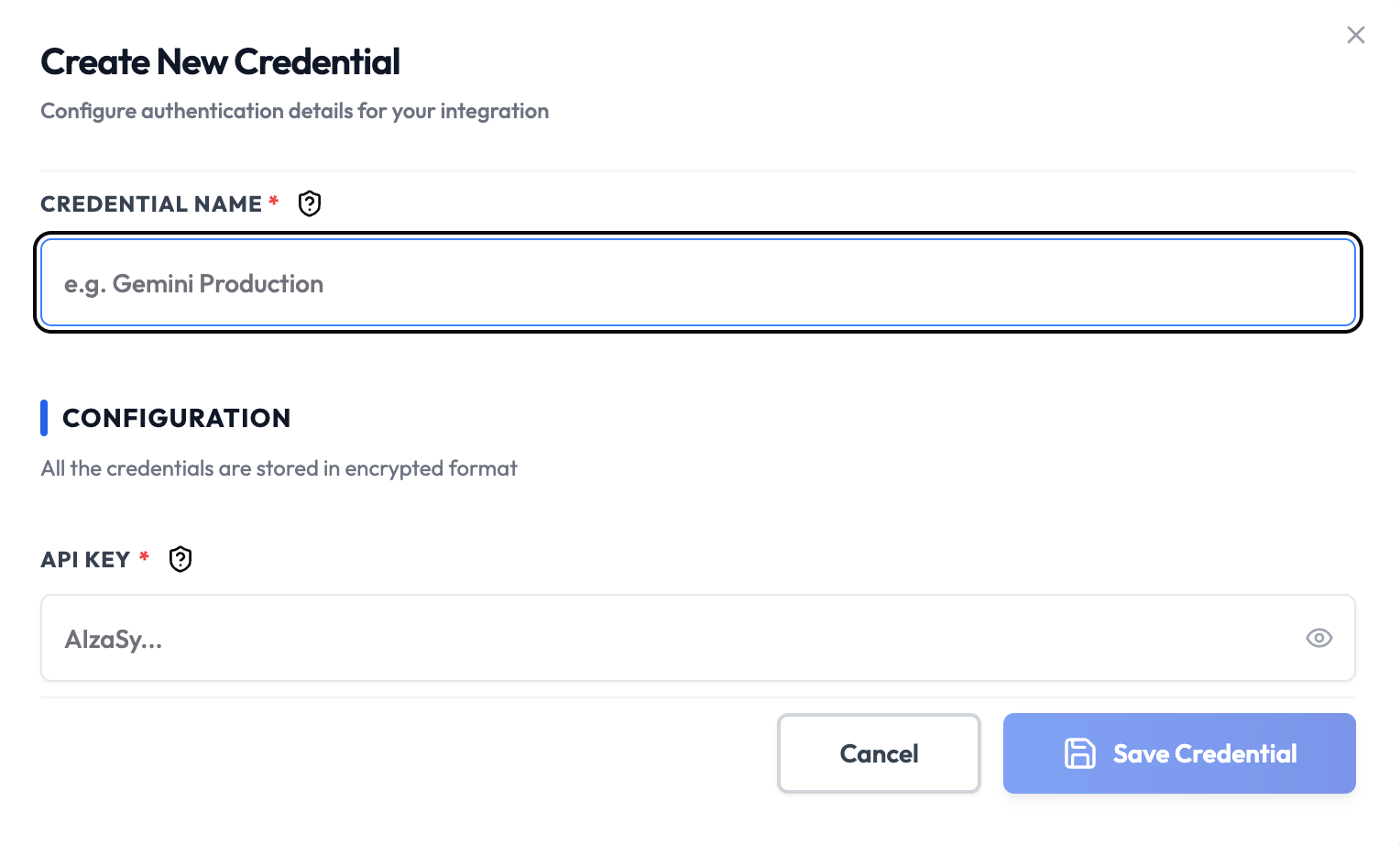
- Click Create New Credential
- Select Google AI API from the credential types
- Enter a name for your credential (e.g., “Production Google AI”)
- Paste your API key in the API Key field
- Click Save Credential
Required Fields
- Name: A descriptive name for your credential
- API Key: Your Google AI API key
Usage Tips
- Use different API keys for development and production environments
- Monitor your usage in the Google AI Studio dashboard
- Google AI offers generous free tiers for testing
- Consider setting up billing for production workloads
Troubleshooting
Invalid API Key: Ensure you copied the complete API key from Google AI Studio Quota Exceeded: Check your usage limits in the Google AI Studio Model Not Available: Some models may be region-restricted or require specific API keysNext Steps
After creating your Google AI credentials:- Use them in AI workflow nodes for text generation
- Set up multimodal workflows with Gemini Pro Vision
- Configure embedding models for vector search
- Experiment with different Gemini models