

WhatsApp API Credentials
WhatsApp API credentials allow AgentVerse nodes and custom function actions to access the Meta WhatsApp Business Cloud API. The credential stores:- Access Token — authenticates requests to the Meta Graph API
- Business Account ID — loads sender phone numbers and approved message templates
options.phoneNumberId to a WhatsApp custom function action.
Dashboard Screenshot
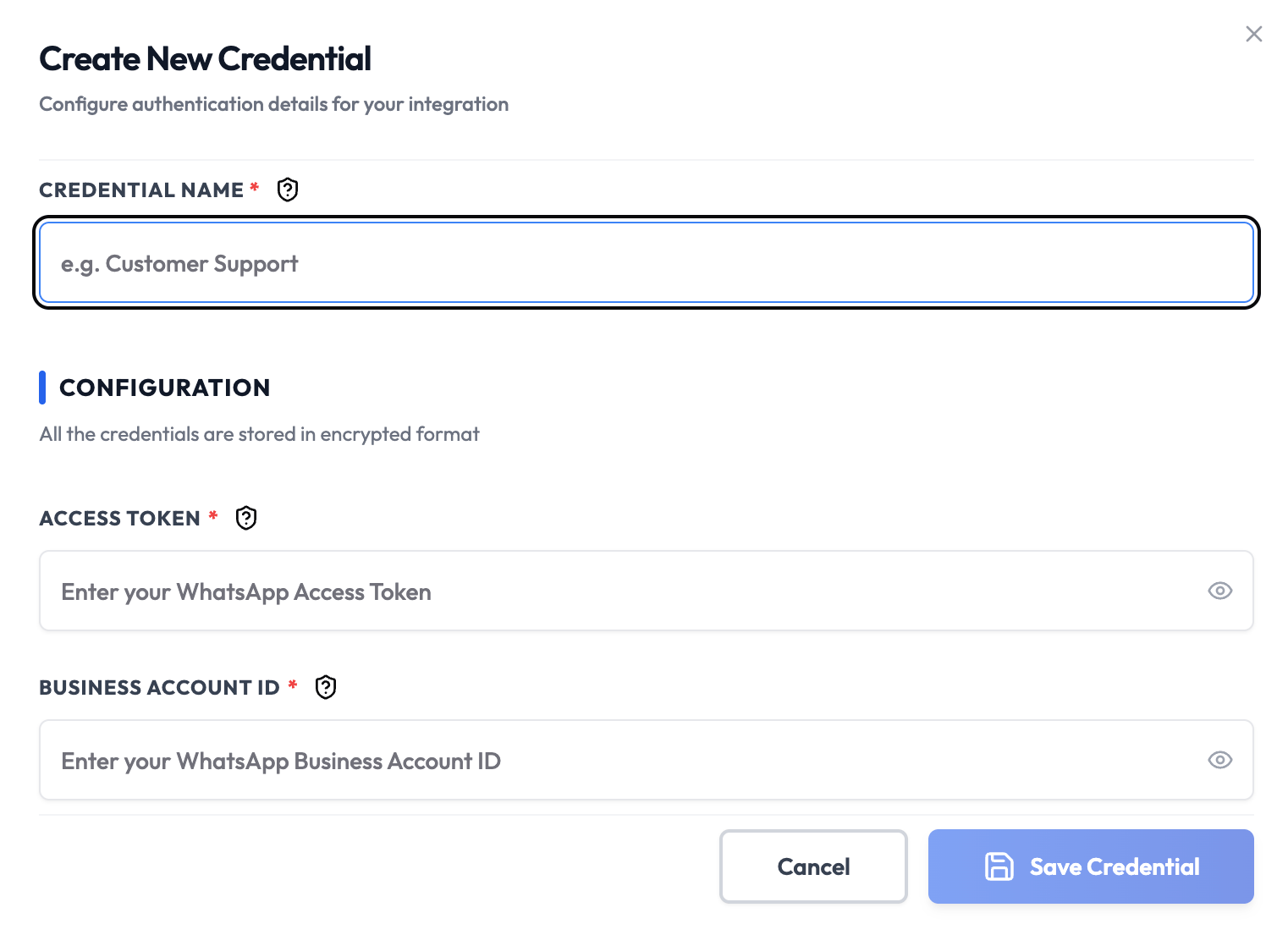
Steps to Create WhatsApp API Credentials
1. Create Meta Business Account
- Visit Meta Business Suite
- Create a Meta Business account
- Verify your business information
2. Set Up WhatsApp Business Account
- In Meta Business Suite, navigate to WhatsApp
- Click Get Started
- Register your phone number for WhatsApp Business
- Verify your phone number
3. Create WhatsApp App
- Go to Apps in Meta Business Suite
- Click Create App
- Select Business app type
- Enter app name (e.g., “SubverseAI WhatsApp”)
- Click Create App
4. Configure WhatsApp Product
- In your app dashboard, click Add Products
- Select WhatsApp
- Configure WhatsApp settings:
- Choose your WhatsApp Business Account
- Set up message templates
- Configure webhook URL (optional)
5. Get API Credentials
- In Meta Business Suite, go to WhatsApp > API Setup
- Generate or copy your permanent Access Token
- Copy your WhatsApp Business Account ID
- Note the Phone Number ID separately; actions require it at execution time
6. Add to SubverseAI
- Go to Credentials in your SubverseAI dashboard
- Click Create New Credential
- Select WhatsApp API from the credential types
- Enter a name for your credential (e.g., Customer Support)
- Fill in the required fields:
- Access Token: Your permanent WhatsApp Cloud API access token
- Business Account ID: Your WhatsApp Business Account ID
- Click Save Credential
Required Fields
- Name: A descriptive name for your credential
- Access Token: Your WhatsApp Cloud API access token
- Business Account ID: Your WhatsApp Business Account ID
Usage Tips
- Use message templates for outbound messages to comply with WhatsApp policies
- Set up webhooks to receive incoming messages in real-time
- Monitor message quality metrics in Meta Business Suite
- Use different phone numbers for different use cases
Troubleshooting
Invalid Access Token: Regenerate the access token in Meta Business Suite Phone Number Not Verified: Ensure your WhatsApp Business account is properly verified Message Template Rejected: Follow WhatsApp’s template guidelines and policies Webhook Not Working: Verify webhook URL and SSL certificateUsage
Once saved, use this credential with:- WhatsApp Business Cloud node
subverseActions.whatsapp.sendTextMessagesubverseActions.whatsapp.sendTemplateMessagesubverseActions.whatsapp.sendMediaMessage