

S3 Storage Credentials
S3 credentials allow your SubverseAI agents to store and retrieve files from Amazon S3 and S3-compatible storage services.Overview
S3 credentials provide access to:- File storage and retrieval
- Bucket management operations
- Object upload/download
- S3-compatible storage services
- Cloud file management workflows
Dashboard Screenshot
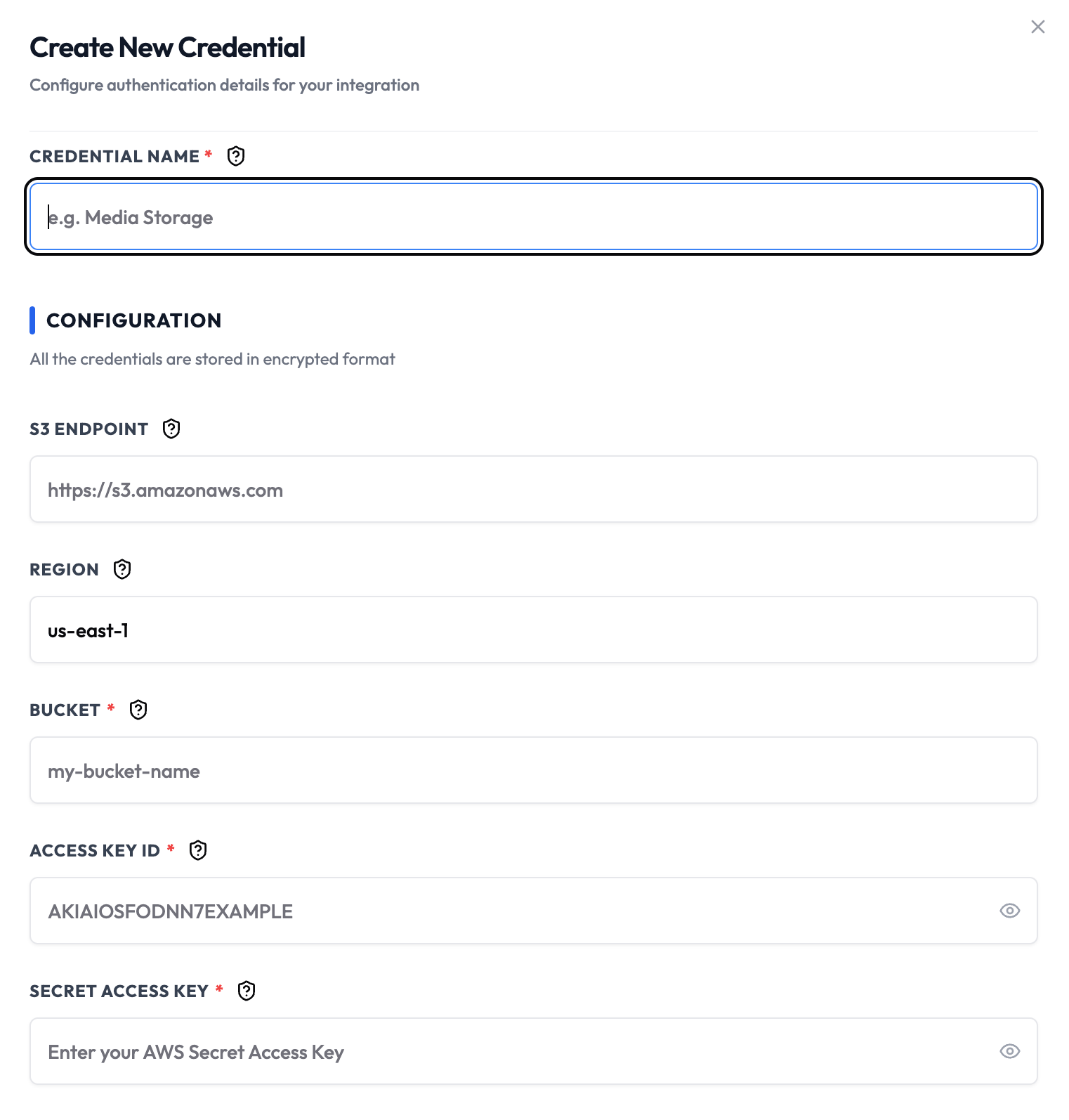
Steps to Create S3 Credentials
1. Create AWS Account
- Visit AWS Console
- Sign up or sign in to your AWS account
- Navigate to the IAM service
2. Create IAM Policy
- Go to Policies in IAM
- Click Create policy
- Select JSON tab and paste:
- Replace
your-bucket-namewith your actual bucket name - Click Next, give the policy a name (e.g., “SubverseAI-S3-Access”)
- Click Create policy
3. Create IAM User
- Go to Users in IAM
- Click Create user
- Enter a username (e.g., “subverseai-s3-user”)
- Select Access key - Programmatic access
- Click Next
- Attach the policy you created in step 2
- Click Next, Create user
4. Get Access Keys
- Copy the Access key ID and Secret access key
- Store these securely - you won’t see the secret key again
5. Add to SubverseAI
- Go to Credentials in your SubverseAI dashboard
- Click Create New Credential
- Select S3 Storage from the credential types
- Enter a name for your credential
- Fill in the required fields:
- Access Key ID: Your AWS access key
- Secret Access Key: Your AWS secret key
- Region: AWS region (e.g.,
us-east-1) - Bucket Name: Your S3 bucket name
- Endpoint (optional): For S3-compatible services
- Click Save Credential
Required Fields
- Name: A descriptive name for your credential
- Access Key ID: Your AWS access key ID
- Secret Access Key: Your AWS secret access key
- Region: AWS region for your bucket
- Bucket Name: Your S3 bucket name
- Endpoint (optional): Custom endpoint for S3-compatible services
Usage Tips
- Use IAM users instead of root account credentials
- Grant minimum required permissions only
- Use different buckets for different environments
- Enable S3 versioning for important data
- Configure bucket policies for additional security
Troubleshooting
Access Denied: Check IAM permissions and bucket policies Invalid Credentials: Verify access key and secret key are correct Bucket Not Found: Ensure bucket name is correct and in the right region Endpoint Error: For non-AWS S3 services, configure the custom endpointNext Steps
After creating your S3 credentials:- Set up file upload/download workflows
- Configure automated backups
- Build file processing pipelines
- Integrate with other cloud storage services
- Monitor storage usage and costs